

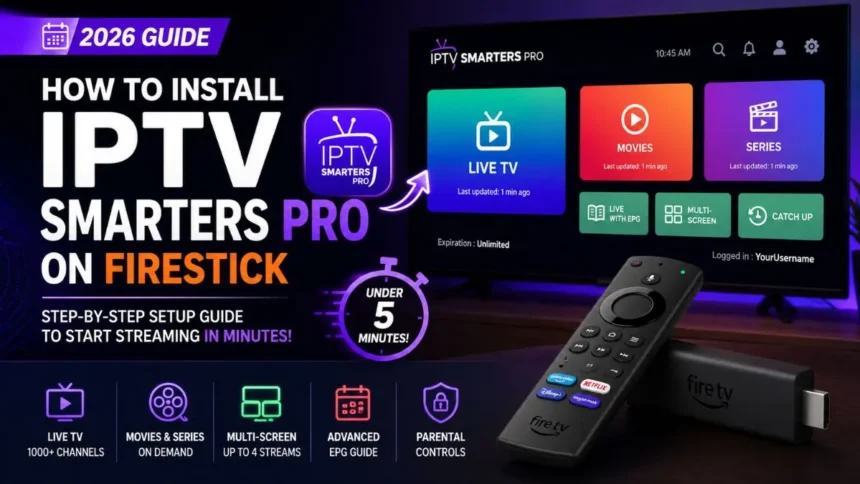
Looking for an easy way to stream live channels, movies, and series on your Amazon FireStick? IPTV Smarters Pro remains the absolute best player to organize and watch your favorite streaming content. Since it isn’t hosted on the official Amazon Appstore, you just need a quick workaround to get it up and running.
In this guide, you will learn exactly how to install and set up IPTV Smarters Pro on any Fire TV device in under five minutes. We cover the necessary settings tweaks, sideloading steps, and playlist configuration details so you can start watching right away.
Why Choose IPTV Smarters Pro? (Pro vs. Lite)
Many users get confused between the Pro and Lite versions available online. While both handle M3U playlists perfectly, the Pro variant brings crucial UI refinements, faster channel caching, and better EPG (Electronic Program Guide) data mapping. Here is a direct breakdown to help you understand what you are getting:
| Feature / Capability | IPTV Smarters Pro | IPTV Smarters Lite |
| Interface Design | Premium, grid-based dashboard | Basic layout, list-heavy |
| Multi-Screen Support | Yes (Watch up to 4 channels simultaneously) | No (Single stream only) |
| EPG Integration | Advanced auto-syncing timetable | Manual upload required often |
| External Players | Supported (VLC, MX Player) | Limited compatibility |
| Parental Controls | Full pin-locked profiles | Basic restriction settings |
Step 1: Prepare Your FireStick for Sideloading
Because IPTV Smarters Pro is a third-party application, Amazon requires you to allow software downloads from outside their official marketplace. Follow these quick steps to adjust your developer options:
- Turn on your FireStick and open the Settings gear icon on the far right of the home menu.
- Scroll down and click on My Fire TV.
- Select Developer Options. (Note: If you do not see Developer Options, go to About and click the name of your FireStick device 7 times quickly until a notification says “You are now a developer.”)
- Find Apps from Unknown Sources (or Install Unknown Apps) and toggle it to ON.
Your streaming device is now fully unlocked and ready to install custom video players.
Step 2: Install the Downloader Utility
To pull the installation file onto your device, we will use a trusted utility app called Downloader. You can find this directly inside the official Amazon store.
- Return to the main home screen and navigate to the Find or Search tab.
- Type in
Downloaderand select it from the suggestions. - Click the orange Downloader icon and hit Download or Get to run the automated installation.
- Open the app and click Allow when prompted for storage permissions.
Step 3: Download and Install IPTV Smarters Pro
With your environment ready, you can now grab the direct APK download link for the app.
- Launch the Downloader application and select the URL box on the home tab.
- Carefully type the following shortcode to access the application file:
250931(or enter the official APK mirror link provided by your premium service provider). - Click Go. Downloader will automatically redirect and start grabbing the IPTV Smarters Pro installation package.
- When the file finishes downloading, a prompt will automatically appear. Click Install.
- Once finished, choose Done. This brings you back to Downloader, where you should click Delete to clear out the temporary installation package and save storage space.
[Insert Internal Link to Setup Guide: Optimizing FireStick Storage for Smooth Streaming]
Step 4: Setting Up Your Channels and Playlists
Now that the tool is installed, it is time to load your streaming content. Open IPTV Smarters Pro from your apps menu and accept the terms of service. You will see several options to add your login details:
- Load Your Playlist or File/URL: Use this if your provider gave you a long M3U playlist URL link.
- Login with Xtream Codes API: This is the preferred method. It requires a server URL, a username, and a password. It loads your categories and guide data much faster than standard lists.
Input your credentials exactly as provided via your activation email and click Add User to let the player populate your live TV channels, movies, and catch-up options.
Frequently Asked Questions (FAQ)
Is IPTV Smarters Pro free?
Yes, the core software is completely free to download and use on Android, Fire TV, and iOS platforms. The app itself does not include any pre-loaded live TV channels, movies, or video feeds. You must bring your own valid service subscription or playlist credentials to watch content.
Why is IPTV Smarters not working on FireStick?
The most common cause is typographical errors inside the Xtream Codes URL string or expired server details. Double-check your spelling, case sensitivity, and expiration dates. If the app crashes on launch, clear the app cache by going to Settings > Applications > Managed Installed Applications > IPTV Smarters Pro > Clear Cache.
Do I need a VPN for IPTV on FireStick?
While not strictly mandatory for the software to run, using a reputable VPN is highly recommended. Many internet service providers actively throttle high-bandwidth video streams or block third-party IPTV servers completely during live sports events. A VPN protects your digital privacy and guarantees unthrottled bandwidth.